
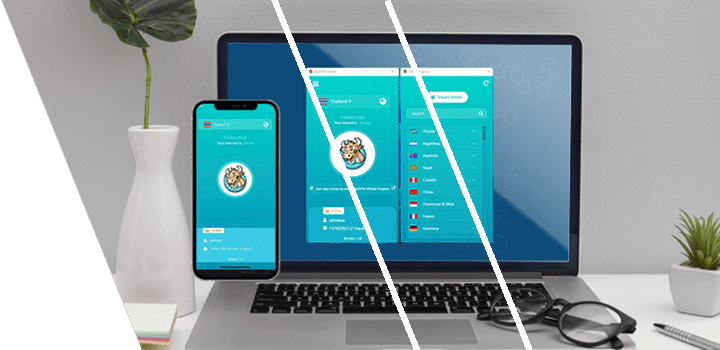
BullVPN for Chrome Extension
Requires Google Chrome version 88 or later. Download the BullVPN extension for Google Chrome now.
Add extension BullVPN 12.0
* 1 Chrome = 1 Device
How to use the program BullVPN for Chrome Extension
1. Register
If you are not yet subscribed can apply here www.bullvpn.com/signup
2. Setup Chrome Extension
BullVPN for Chrome Extension can be installed here. You can open the extension right away.
 3. Get started
If you are already subscribed to BullVPN, press "Have an account", if not yet, press "Create account"

After that, enter Username and Password in BullVPN system, then press "Login"
 4. How to choose Location VPN
Click on the globe icon in the VPN server box to select and change servers. Alternatively, you can click on the Smart Server button to randomly select a server automatically. If the connect button is colorful like this shows that you have successfully made a VPN connection.

5. Other uses within the application
Tap on the top left corner (three lines) to view the menu.
- Check IP - After you have connected BullVPN, you can press "Check IP" to check your latest IP status.

- My Account - The system will display your information: Username, Email, Active Days, Expiration Date, and Number of Devices (number of devices that can be used at the same time).
- Upgrade - Select this menu to pay for BullVPN service.

*1 browser login per 1 device - Each browser “login” is counted as 1 device.