
Want to play mobile games on your PC but don't know where to start? BlueStacks is an Android emulator that lets you play mobile games and run Android apps on your computer without needing a separate Android device. BlueStacks 5, in particular, is designed for Windows users. If you want to use a VPN within the emulator, you can also try installing BullVPN to connect to a server in your preferred country. This guide will introduce you to BlueStacks and walk you through downloading, installing, and using BullVPN step by step.
What Is BlueStacks and What Can You Use It For?
BlueStacks is an Android emulator that allows users to run Android applications and play mobile games on a computer. Instead of using a touchscreen, you can control games with a mouse and keyboard. It's ideal for gamers who prefer playing on a larger screen or anyone who wants to access Android apps on a PC.
BlueStacks has evolved into its fifth major version, known as BlueStacks 5, which offers improved performance, more efficient resource usage, and features that make PC gaming more convenient. These include customizable keyboard controls and the ability to run multiple game instances simultaneously.
What Is BlueStacks 5 and How Does It Work?
BlueStacks 5 is an Android emulator, also known as the BlueStacks Android Emulator, that allows users to play mobile games and run Android applications on a computer. It creates a virtual Android environment, enabling users to download apps from the Google Play Store, similar to using an Android smartphone.
BlueStacks 5 also includes features that enhance mobile gaming on PC, such as customizable mouse and keyboard controls, multi-instance support, and performance settings that can be adjusted to match your computer's specifications. However, some games may not support emulator usage.
How to Download and Install BlueStacks 5 on PC
If you want to play mobile games on your computer, you can download BlueStacks 5 for free. The software is available for Windows, and the installation process is straightforward.
- Visit the official BlueStacks website at https://www.bluestacks.com
- Select Download BlueStacks 5 for Windows.
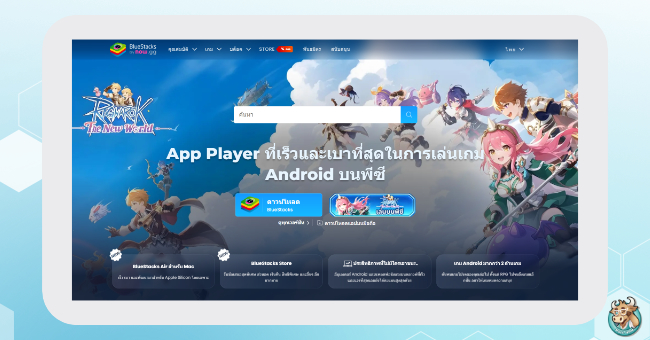
- Open the downloaded installation file and click Agree and Install to begin the installation.
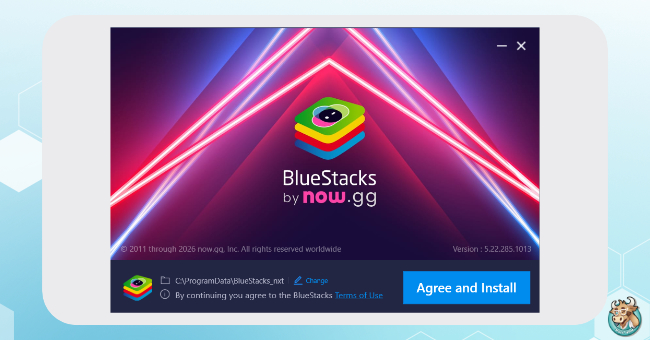
- Wait for the installation process to finish.
- Launch BlueStacks 5 on your computer.
- Go to System apps, select Google Play Store, and sign in with your Google account.
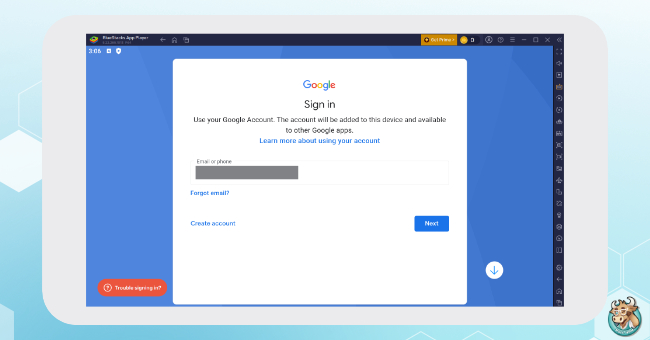
- Once you've signed in, you can search for and download your favorite Android games and applications.
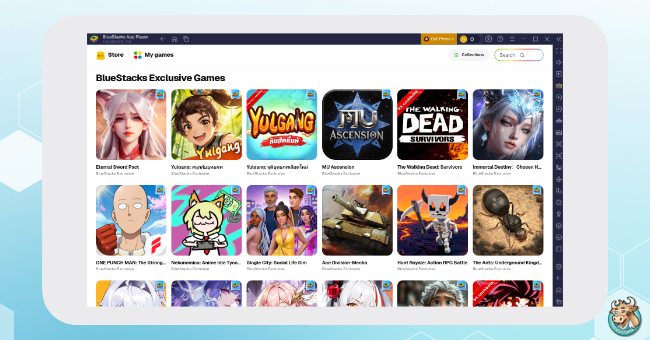
Note: Mac users can explore BlueStacks Air, a version designed for Macs with Apple Silicon chips. This guide focuses primarily on BlueStacks 5 for Windows.
Can You Play Region-Restricted Mobile Games on BlueStacks 5 with a VPN?
When playing mobile games from other countries on BlueStacks 5, a VPN can help change your IP address to your preferred location. For example, if you want to play a game available in Japan, you can connect to a Japanese VPN server before launching the game. This may help you access certain games or services with regional restrictions.
Beyond gaming, setting up a BlueStacks VPN allows you to choose the country associated with your IP address when connecting to the internet within the emulator. By using BlueStacks 5 VPN with BullVPN, you can select servers and switch between countries directly within the app.
However, using a VPN does not guarantee access to every international game. The Google Play Store may determine availability based on your Google account's country settings, while some games may restrict the use of emulators or VPN connections.
Unblock BlueStacks anywhere in the world
How to Install and Use BullVPN on BlueStacks 5
After installing BlueStacks 5, you can try downloading BullVPN from the Google Play Store to use a VPN within the emulator. Follow these steps to install the app, select a server, and establish a VPN connection.
How to Install BullVPN from the Google Play Store
- Open BlueStacks 5 on your computer.
- Go to System apps and select Google Play Store.
- Search for BullVPN in the search bar.
- Select BullVPN from the search results and click Install.
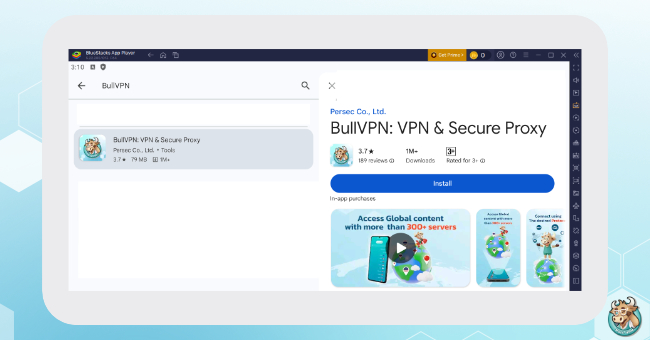
- Once the installation is complete, open the BullVPN app within BlueStacks 5.
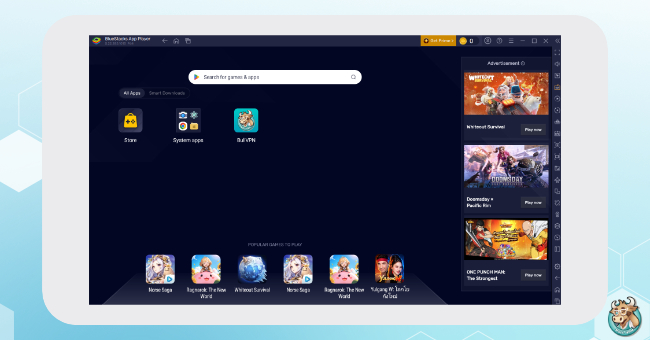
- Sign in to your BullVPN account or create a new account if you don't have one.
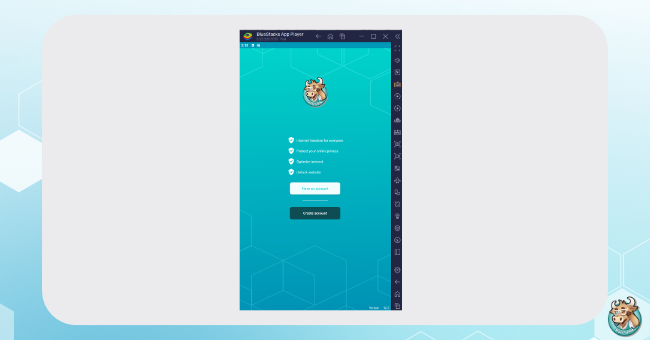
How to Connect BullVPN and Select a Server
- Open the BullVPN app within BlueStacks 5.
- We recommend using WireGuard or OpenVPN as your protocol VPN
- Go to the server selection page and choose your preferred country.
- Tap Connect to establish a VPN connection.
- If a VPN connection permission request appears, confirm it.
- Wait until the app displays the Connected status.
- Open a public IP address checker in the browser within BlueStacks to verify that the VPN connection is working as expected.
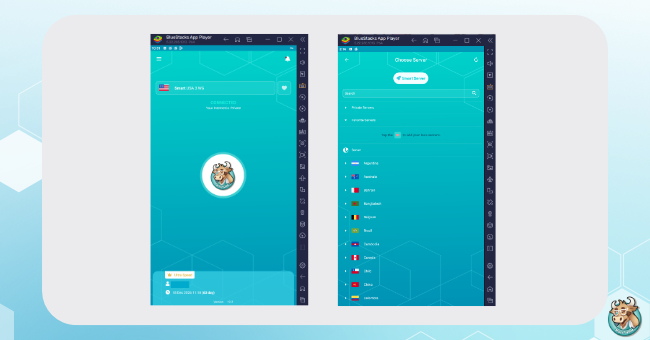
Once you've completed these steps, you can start testing BullVPN with BlueStacks 5. Keep in mind that connection performance and compatibility may vary depending on the emulator version and your computer's network settings.
How to Fix BullVPN Connection Issues on BlueStacks 5
If you've installed BullVPN on BlueStacks but cannot connect to the VPN or access websites, try the following troubleshooting steps:
- Check your internet connection: Open a website within BlueStacks without connecting to the VPN to confirm that your internet connection is working normally.
- Switch servers: Try connecting to a server in another country, or tap Reload Server in the BullVPN app before reconnecting.
- Update your software: Make sure BlueStacks 5 and BullVPN are updated to their latest compatible versions.
- Restart BlueStacks: Close the emulator completely, reopen it, and try connecting again.
- Check your public IP address: If BullVPN displays Connected but your IP address remains unchanged, the issue may be related to the emulator's network limitations.
If the issue persists, you can try installing BullVPN directly on Windows as an alternative. However, you should separately verify whether BlueStacks internet traffic is actually routed through the Windows VPN connection.

BlueStacks is a convenient option for anyone who wants to play mobile games on a computer without constantly switching between a smartphone and a PC. If you want to try using a VPN within the emulator, you can install BullVPN through the Google Play Store and select your preferred server location.
Whether you need a VPN for your computer, smartphone, or tablet, BullVPN supports a wide range of devices and offers over 300 servers across 49 countries worldwide, giving you the flexibility to connect to your preferred location. Download BullVPN and get started today!
BullVPN will give you freedom internet world through block restrictions.
✅ Hide your IP address
✅ Access blocked websites
✅ VPN servers in 300 Servers in 49 countries
✅ Lag reduced and ping Games
✅ Supports Windows, Mac, iPhone, Android, Chrome Extension, Android TV
✅ Trusted by over a hundred thousand users worldwide